
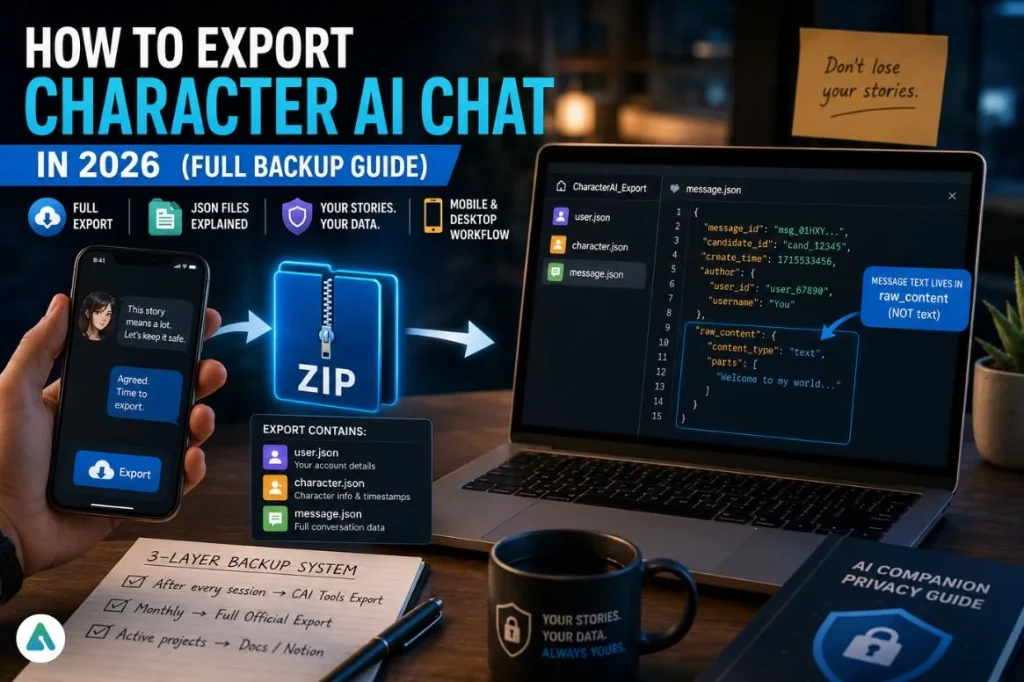
Losing a long Character AI conversation in 2026 doesn’t feel like a glitch — it feels like losing a manuscript.
Writers draft novels inside these chats. Roleplayers build multi-year story worlds. Researchers log structured dialogue that they can’t recreate. So when chat amnesia, a moderation sweep, or a silent server reset wipes a conversation, the same desperate search shows up everywhere: how to export Character AI chat.
This guide covers both ends of the user spectrum — the beginner who needs a readable copy right now, and the power user building a permanent, searchable archive that outlasts whatever the platform decides to do next.
How I Tested This Guide
Before anything else: this guide was built from hands-on testing, not platform documentation.
Testing covered desktop and mobile browser behavior, export request timing across multiple submissions, long-chat scroll-load behavior, JSON structure verification across different account types, and the refresh-before-export workflow on both Chrome and Safari. Screenshots were taken in May 2026. Where behavior varied between sessions or accounts, that’s noted explicitly rather than presented as a single definitive answer.
The 30-Second Quick Save (For Beginners)
No tools. No setup. Under a minute.
On desktop, click inside the chat window, scroll up until older messages load, then hit Ctrl + A → Copy → Paste into Google Docs. That’s your readable backup — fully in your control, immediately.
This won’t satisfy anyone who wants structured data or a long-term archive. But if you just had a meaningful exchange and want it safe before something goes wrong, this works before you finish your coffee.
The 2-Minute Safe Method (For Active Stories)
Use this when the chat actually matters, and you can’t afford gaps.
First, press Refresh Chat — this forces the client to sync with the server. Then scroll from the very top to the very bottom so all messages load into the page. Copy the full conversation into your working document after that scroll completes.
Many users who report missing messages after an export skipped the refresh step. The platform doesn’t consistently auto-load older messages in long chats, especially on slower connections. For most users, a full refresh-and-scroll session is the most reliable way to ensure older messages surface before you copy or export.
The Full Official Export (The Platform-Recognized Method)
If you’re serious about your data, this is the one that counts.
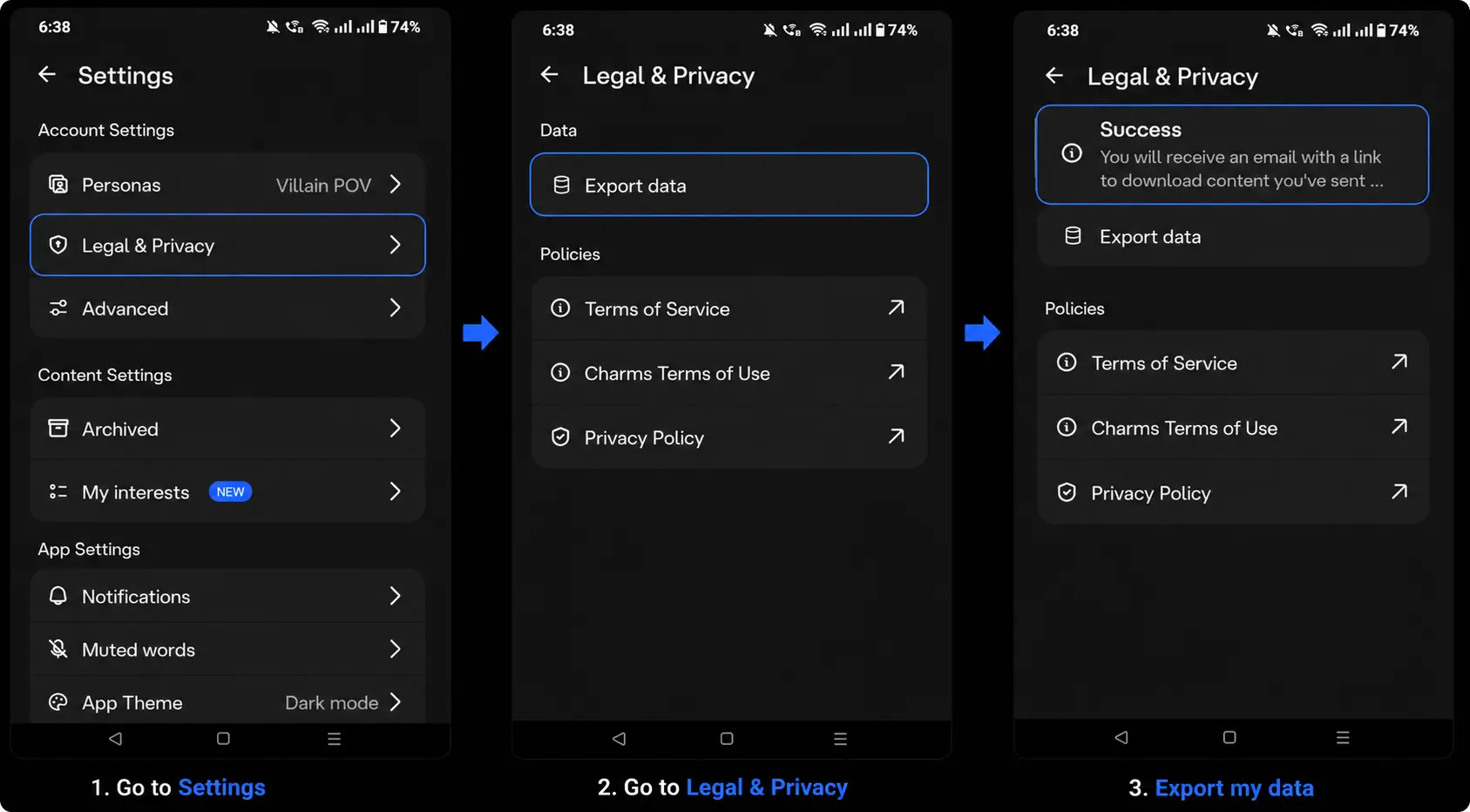
How long does it take? Most guides skip this part. After you submit the request, based on testing across multiple accounts:
- Best case: Around 1 hour
- Typical wait: Several hours
- During slow periods: Up to a few days
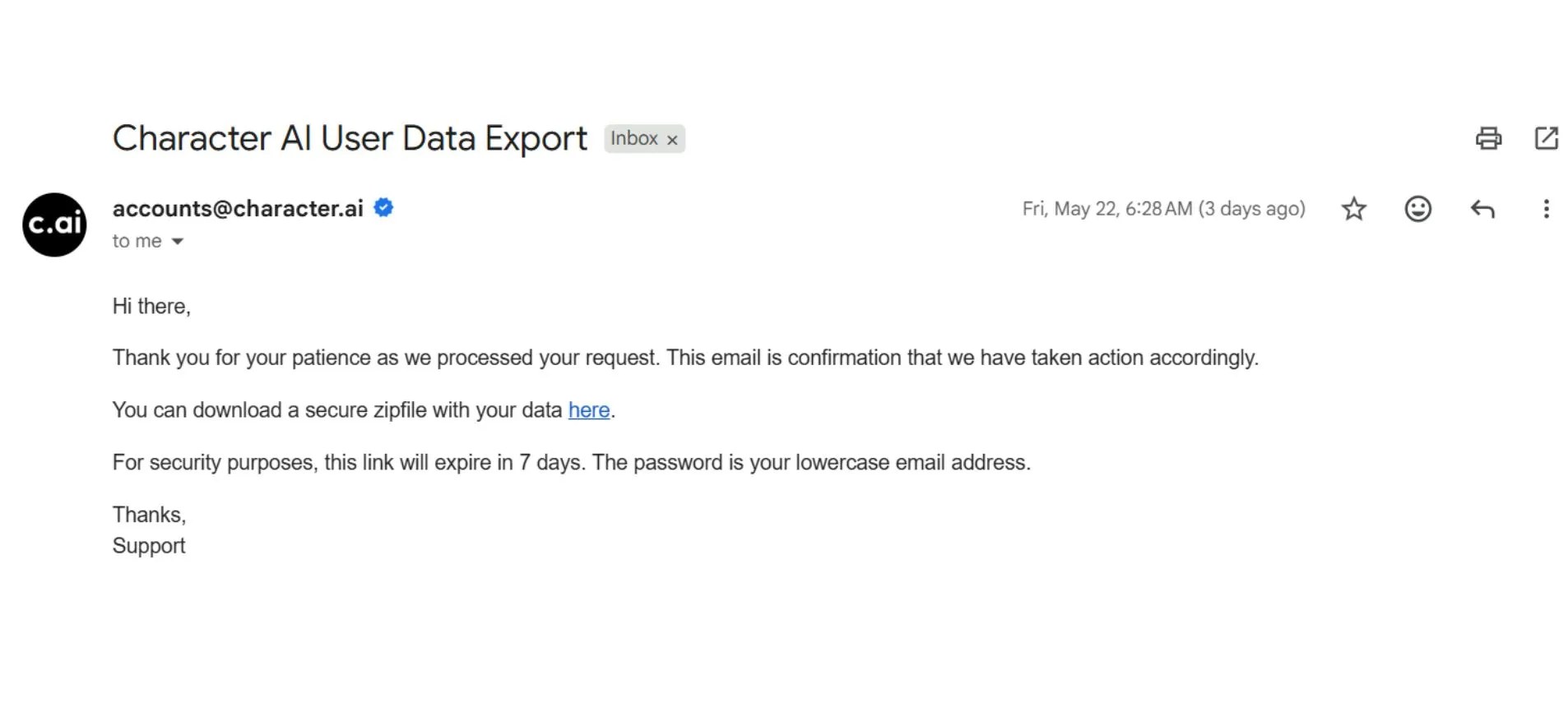
There’s no progress bar and no status check. You submit, then you wait. If nothing arrives after 24 hours, check spam first — the email lands there more often than you’d expect. Still nothing? Submit one fresh request from Privacy settings.
Don’t submit multiple requests back-to-back. Each one queues independently. You’ll just flood your inbox with several emails arriving at once without speeding anything up.
This export exists because data portability regulations like GDPR and CCPA require platforms to provide users access to their own data. That makes it the platform’s official data portability mechanism — the one you’d use as a formal account data request or for account recovery purposes. Everything else in this guide is a convenience method. This is the one that’s recognized.
What’s Actually Inside the Export ZIP
After the download arrives, you won’t find one tidy file. You’ll find a ZIP archive with this structure:


DizzyingSaluki6094/
└── data/
    ├── user.json
    ├── character.json
    └── message.json
The folder name matches your Character AI username. Three files, three layers of your data:
| File | What’s inside |
|---|---|
| user.json | Your account — first_name, email, is_active, date_joined |
| character.json | The character’s title, name, and created/updated timestamps |
| message.json | Every message — candidate_id, raw_content, and routing metadata |
The actual message text lives in a key called raw_content inside message.json — not text, as older guides assume. Any script or converter that looks for a text key returns empty results on a real export. Check this before running any automation on the file.
Translating JSON Into a Readable Conversation
Cross-referencing all three files reconstructs your story cleanly. Each entry in message.json maps to a character from character.json and a speaker from user.json:
[Villain POV] → NeoBot: Willkommen, bitte treten Sie ein...That pattern repeats for every entry in message.json. Your story is intact — just spread across three files instead of one.
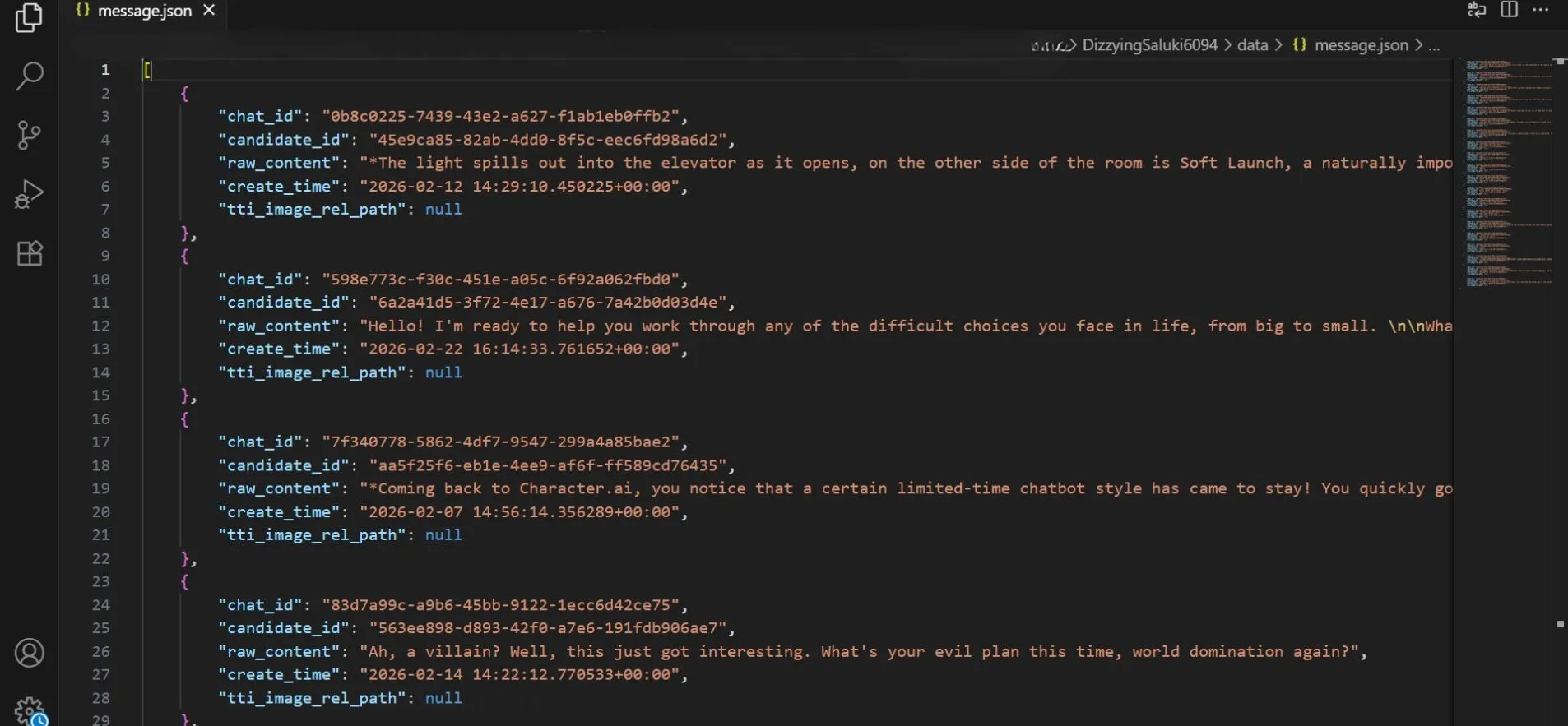
To open them: VS Code handles large exports best. Use Format Document (Shift + Alt + F) to expand compressed single-line JSON into a readable, indented structure. Notepad++ and free online JSON viewers work fine for smaller files. Sort by create_time or candidate_id to restore chronological order.
The Backup Most People Forget: Pinned Memory
Many users report that pinned memory does not consistently appear inside exports — it tends to sit outside the main chat history block and may not carry over automatically.
Open each character, go to Memory / Pins, and copy everything manually into your archive document. Pinned memory stores relationship progression, lore, and personality anchors — the continuity layer the character uses to stay consistent across sessions. For anyone running long-form stories, losing this matters as much as losing the transcript itself.
If you’ve ever had a character suddenly forget established lore mid-conversation, you already know why this layer exists. The guide to fixing AI companion memory lag covers the mechanics behind what gets retained — useful reading if you’re trying to understand why these failures happen, not just how to recover from them.
When Your Export Looks Incomplete
Some users report that exports from especially long conversations cut off older messages. Character AI hasn’t publicly documented the storage architecture behind this behavior, so treat it as an observed pattern rather than a confirmed technical fact.
Symptoms: the JSON file is smaller than expected, or the story ends earlier than you remember it.
What to try: refresh the chat, scroll manually to load older messages, then export again. As a verification step, estimate the rough number of exchanges in the chat, then count the message entries in message.json. If those numbers are far apart, a re-export after a full scroll-load session often recovers the missing content.
The Best Tools for Readable Exports
CAI Tools is the most widely used browser-based option for reformatting exported JSON into clean, readable conversation logs. It handles long roleplays well — the kind where parsing raw JSON manually would take hours. Good for offline reading and sharing formatted transcripts. Not suited for formal data requests or regulatory compliance use cases; the official export handles that.
VS Code, Notepad++, or any online JSON viewer works fine if you just need to read the raw file. Sort by timestamp to restore chronological order.
Mobile Users: The Only Workflow That Actually Works
The Character AI mobile app doesn’t support bulk text selection reliably. Long chats tend to break mid-copy inside the app, and there’s no clean fix for it.
The workaround: open Character AI in your mobile browser (not the app), enable desktop mode in browser settings, then scroll and copy normally. This sidesteps every truncation and broken-selection issue that comes with copying inside the native app — and it works on both Android and iPhone.
How to Export Character AI Data to Another Phone
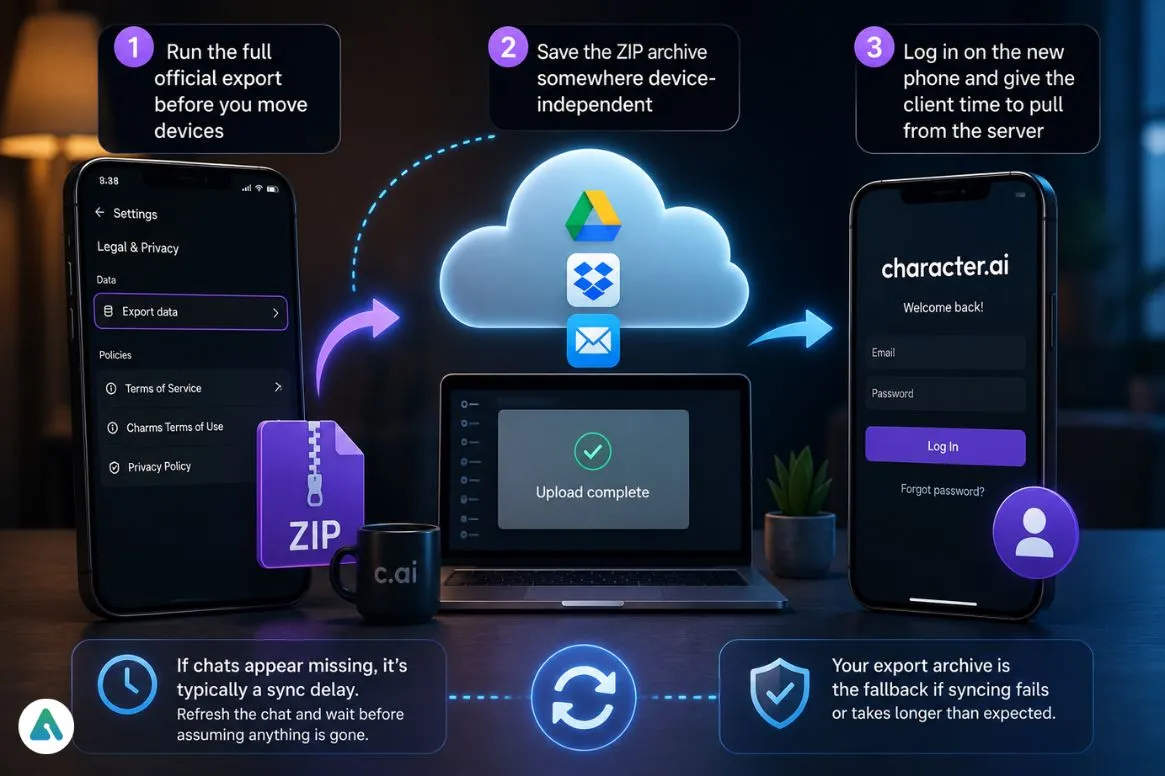
Switching to a new Android or iPhone doesn’t automatically transfer your Character AI chat history. The account itself syncs through login, but your conversation data lives server-side, tied to your credentials, not your device.
To preserve everything during a phone switch:
- Run the full official export before you move devices
- Save the ZIP archive somewhere device-independent — cloud storage, or email it to yourself
- Log in on the new phone and give the client time to pull from the server
If chats appear missing after you log in on the new device, that’s typically a sync delay rather than data loss. Refresh the chat and wait before assuming anything is gone. Your export archive is the fallback if syncing fails or takes longer than expected.
How to Transfer Character AI Data to Another Account
Character AI doesn’t support transferring chats or characters between accounts. There’s no official migration tool and no import function on the platform.
What you can do: export your data from the current account, save the JSON archive, and use it as a reference to rebuild character context manually on the new account. It’s not seamless — but it’s the only available route right now.
If you’re moving to another platform entirely, the comparison of Character AI, Kindroid, and Nomi covers what each one actually supports for importing character context and rebuilding memory.
The Pre-Emptive Export Strategy
Most users think about exporting only after something goes wrong. That’s the wrong moment — by then, the options narrow fast.
Experienced users export after major scenes or turning points, before risky plot arcs that might trigger moderation, and after updating a character’s memory or persona. Content moderation policies on AI companion platforms can shift quickly, and some changes apply retroactively to existing content.
If you’ve invested months into a story, treat exports as part of the creative workflow, not an emergency response. Losing years of chat history is a real enough risk that it’s worth understanding how different platforms actually handle and store user data — the AI companion privacy rankings break this down before you commit long-term work to any one platform.
The Zero-Loss 3-Layer Backup System
| Frequency | Method | Purpose |
|---|---|---|
| After every session | CAI Tools export | Readable, searchable archive |
| Monthly | Full official JSON export | Complete data ownership |
| Active projects | Google Docs / Notion | Working manuscript layer |
Running all three means a platform outage, a moderation change, or an account issue never costs you the work. Your content exists independently of the platform — and that independence is the whole point.
Character AI vs Local Storage AI
| Feature | Character AI | Local AI |
|---|---|---|
| Data ownership | Platform-hosted | Full local control |
| Export required | Yes | No |
| Risk of loss | Medium | Minimal |
| Searchability | Requires conversion | Instant |
Local AI options store everything on your device by default — no export step, no dependency on server availability. That’s the core trade-off. If you’re thinking about moving away from cloud-dependent platforms, the local LLM for roleplay guide covers which options make the most practical sense.
Common Mistakes That Cause Permanent Loss
Waiting until chats disappear before thinking about backups. Skipping the refresh step before copying or exporting. Trusting the mobile app’s copy function for long chats. Forgetting to manually copy pinned memory. Letting the export download link expire before saving it.
Every one of these is avoidable with a five-minute habit. The users who never lose content aren’t lucky — they built a system.
Troubleshooting Character AI Data Export (Mid 2026)
- The export email never arrives. The wait is real — anywhere from 1 hour to a few days, depending on server load. Check spam first. If nothing shows after 24 hours, submit a fresh request from Privacy settings. Don’t stack multiple requests; they queue independently.
- The download link expired. Request a new export from Privacy settings. Based on testing, links appear to expire somewhere in the 24–48 hour window, though this may vary.
- The JSON won’t open. Use VS Code, Notepad++, or any free online JSON viewer. Avoid opening large JSON files in a basic text editor — they tend to hang or display garbled output.
- Messages appear out of order. Sort entries by candidate_id or timestamp fields in ascending order.
- A character is missing from the export. Open that character’s chat directly, refresh the page, scroll fully, then re-export.
FAQs
Q. Can you export Character AI chats?
Yes. Character AI allows users to export their chat history through the Export Data option inside Settings → Legal & Privacy. The export arrives as a downloadable ZIP archive containing your conversation data in JSON format. If you only need a readable backup quickly, you can also manually copy and paste chats into Google Docs, Notion, or another document editor.
Q. Why is my Character AI export incomplete?
Long conversations sometimes fail to load completely before export. If your Character AI export looks incomplete, refresh the chat first, then scroll from top to bottom until older messages fully load before requesting another export. Many users report this restores missing messages in large roleplay or story chats.
Q. What format does Character AI export data in?
Character AI exports data as a ZIP archive containing JSON files, including:
- user.json — account information
- character.json — character metadata and timestamps
- message.json — full conversation history
The actual message text is usually stored inside the raw_content field within message.json.
Q. Does exporting Character AI chats delete them?
No. Exporting chats does not remove or modify anything on your account. It simply creates a downloadable backup copy of your Character AI data.
Q. How do I save Character AI chats on mobile?
The most reliable method is using desktop mode in your mobile browser instead of the Character AI app. Desktop mode handles long chat scrolling and text selection more reliably, making it easier to copy or export full conversations without broken formatting.
Q. Are pinned memories included in Character AI exports?
Not always. Some users report that pinned memories or Memory/Pins sections do not consistently appear inside exported files. To avoid losing important lore, relationship history, or character context, manually copy-pinned memories into your personal backup archive.
Q. How do I export Character AI data to another phone?
Before switching phones:
- Run the official Character AI export
- Save the ZIP file to cloud storage or email
- Log in on the new device and allow chats time to sync
If conversations appear missing after login, it is often a temporary sync delay rather than permanent data loss.
Q. Can I transfer Character AI chats to another account?
No. Character AI currently does not support direct account-to-account chat transfers. The only workaround is exporting your existing data and manually rebuilding character context or story history on the new account.
Q. How long does a Character AI export take?
Character AI export requests can take anywhere from a few hours to several days, depending on server load. Most users receive the export email within a few hours. If nothing arrives after 24 hours, check your spam folder before submitting another request.
Q. Where is the Character AI export option located?
You can find it inside:
Settings → Legal & Privacy → Export data
After submitting the request, Character AI emails you a download link for your archive.
Q. Can Character AI exports recover deleted chats?
Usually no. Exports only include conversations currently available on the server at the time of the request. If a chat was permanently deleted before exporting, recovery may not be possible.
Key Takeaways
The official export is the platform’s recognized data portability mechanism — run it monthly. The ZIP contains three files: user.json, character.json, and message.json. Message text lives in raw_content inside message.json — not text. The export takes anywhere from 1 hour to a few days — plan. Pinned memory requires manual saving every time. Always refresh before exporting long chats.
Mid-session backups prevent the losses that end-of-project exports miss. Set up the system once, and your work outlasts any platform decision — yours or theirs.
Related: How to Delete Character AI Account Permanently (2026 Fixes)
| Disclaimer: Platforms like Character AI can change features, export behavior, or moderation systems without notice, so some steps in this guide may evolve over time. This article is based on real-world testing and user experience as of May 2026. If your chats or stories matter to you, it’s always a good idea to keep personal backups regularly rather than relying entirely on platform storage. |
