

Grok now has “Delete All Conversations” and “Delete All Imagine Media” buttons in Data Controls on grok.com and in the standalone app. On X, it’s buried under Privacy & Safety → Grok & Third-Party Collaborators. Deleted data disappears from your interface instantly but remains in xAI’s backend systems. If you want to recover deleted Grok chats, you have 30 days per xAI’s official retention policy.
TL;DR — Key Takeaways
|
What “Grok History” Actually Means in 2026
Grok’s data footprint is split across three distinct layers, and most guides treat them as one thing. That’s why people delete their chats and still feel like nothing happened.
The Visible Layer is your chat sidebar and Grok Imagine gallery — everything rendered in your UI. The Training Layer is your prompts and outputs that xAI uses to fine-tune future models, governed separately from history deletion. The Infrastructure Layer is the backend telemetry, safety logs, and moderation data that xAI retains regardless of what you delete at the surface level.
Deleting your history controls Layer 1. Opting out of training controls Layer 2. Layer 3 is retained by xAI for safety and legal compliance, up to 30 days for standard data per their official FAQ, and potentially longer for security or legal holds.
Where Grok Lives in 2026: The Ecosystem Split
Grok is no longer just an X sidebar feature. It now runs across three separate surfaces — and each one has slightly different deletion controls.
The standalone Grok app (iOS and Android) and grok.com both use the Data Controls dashboard. The X platform integration routes deletion through X’s Privacy & Safety menu. If you use Grok across multiple surfaces, you may need to clear history on each one separately.
Method 1: Delete All Grok History via Standalone App or Grok.com
This is the fastest path. Both the dedicated mobile app and the desktop web interface give you a centralized Data Controls dashboard that handles bulk deletion in two clicks.
On the Grok Mobile App (iOS & Android)
- Open the Grok app and tap your Profile Icon in the top-left corner
- Select Settings, then tap Data Controls
- Tap Delete All Conversations → confirm
- Tap Delete All Imagine Media → confirm separately
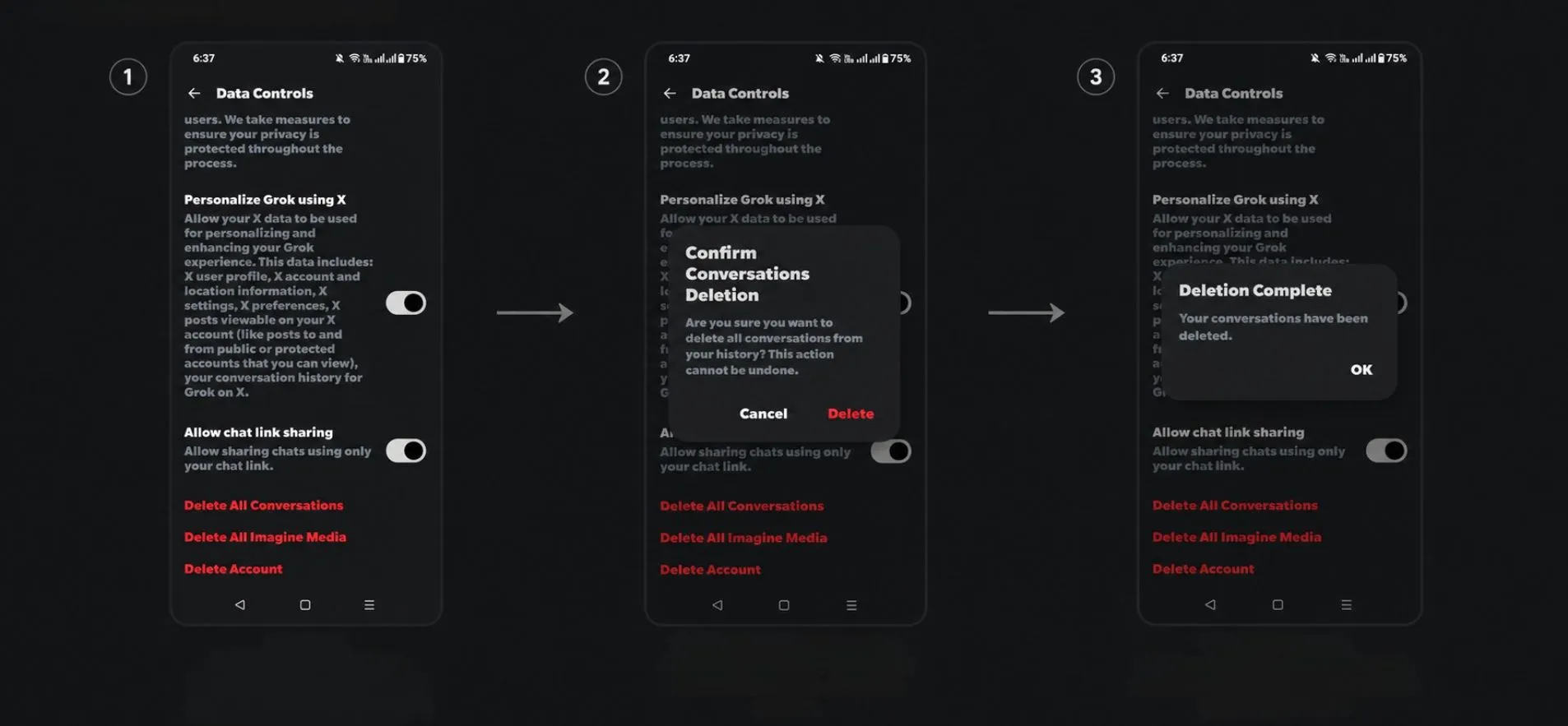
On Grok.com (Desktop)
- Click your Profile Picture in the bottom-left (layout varies by UI version)
- Open the Settings gear icon
- Select Data Controls from the left-hand menu
- Click Delete next to Delete All Conversations, then repeat for Delete All Imagine Media
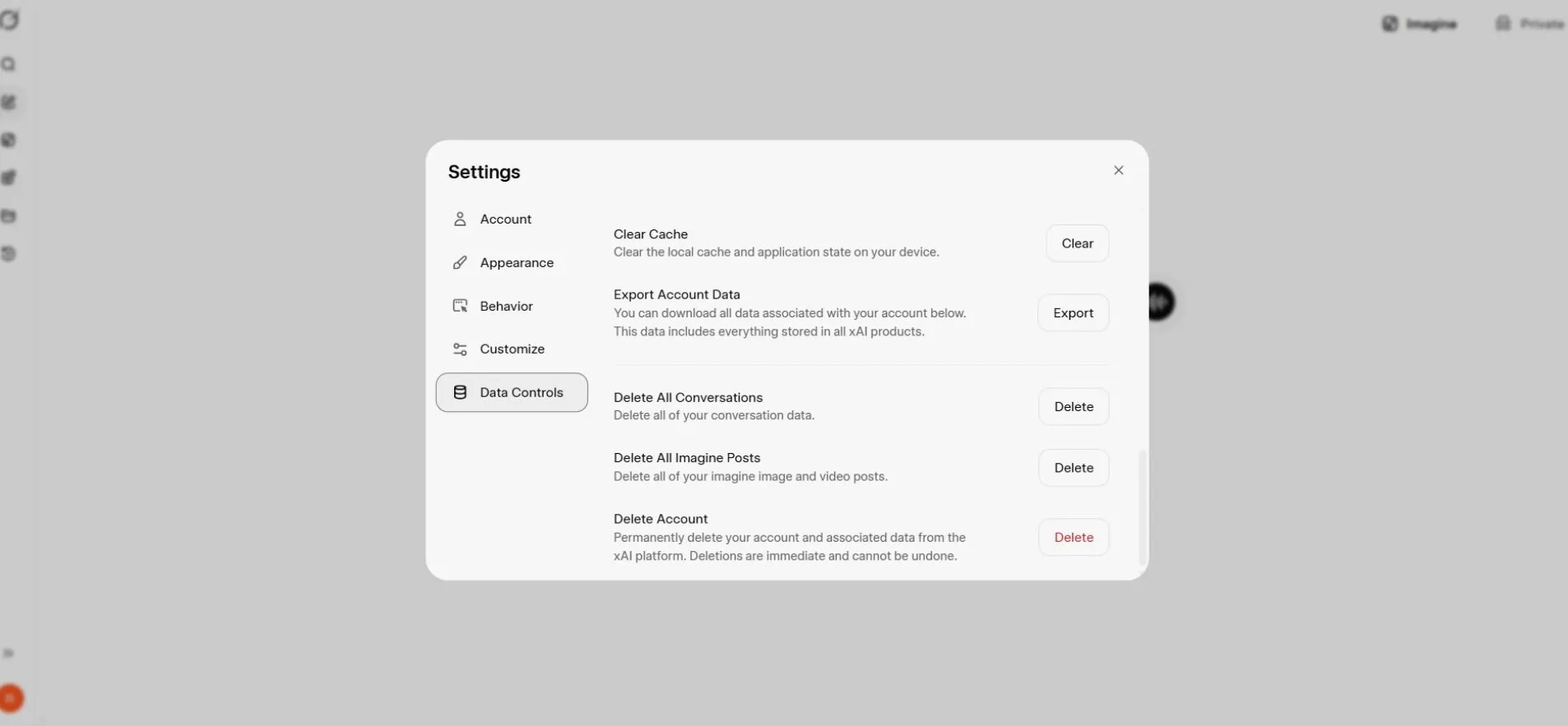
Both deletions are irreversible from the user side. Once you’re past the 30-day backend window, the data is permanently inaccessible to you — and to xAI’s training pipelines, unless it was already processed before you deleted it.
Method 2: Delete Grok History Inside X (Twitter)
If you access Grok through your X subscription rather than the standalone app, the deletion controls are nested inside X’s social media privacy settings — not the Grok interface itself.
- Open X and tap More in the left sidebar (desktop) or your profile icon (mobile)
- Go to Settings and Privacy → Privacy and Safety
- Scroll to Grok & Third-Party Collaborators
- Tap Delete Conversation History and confirm
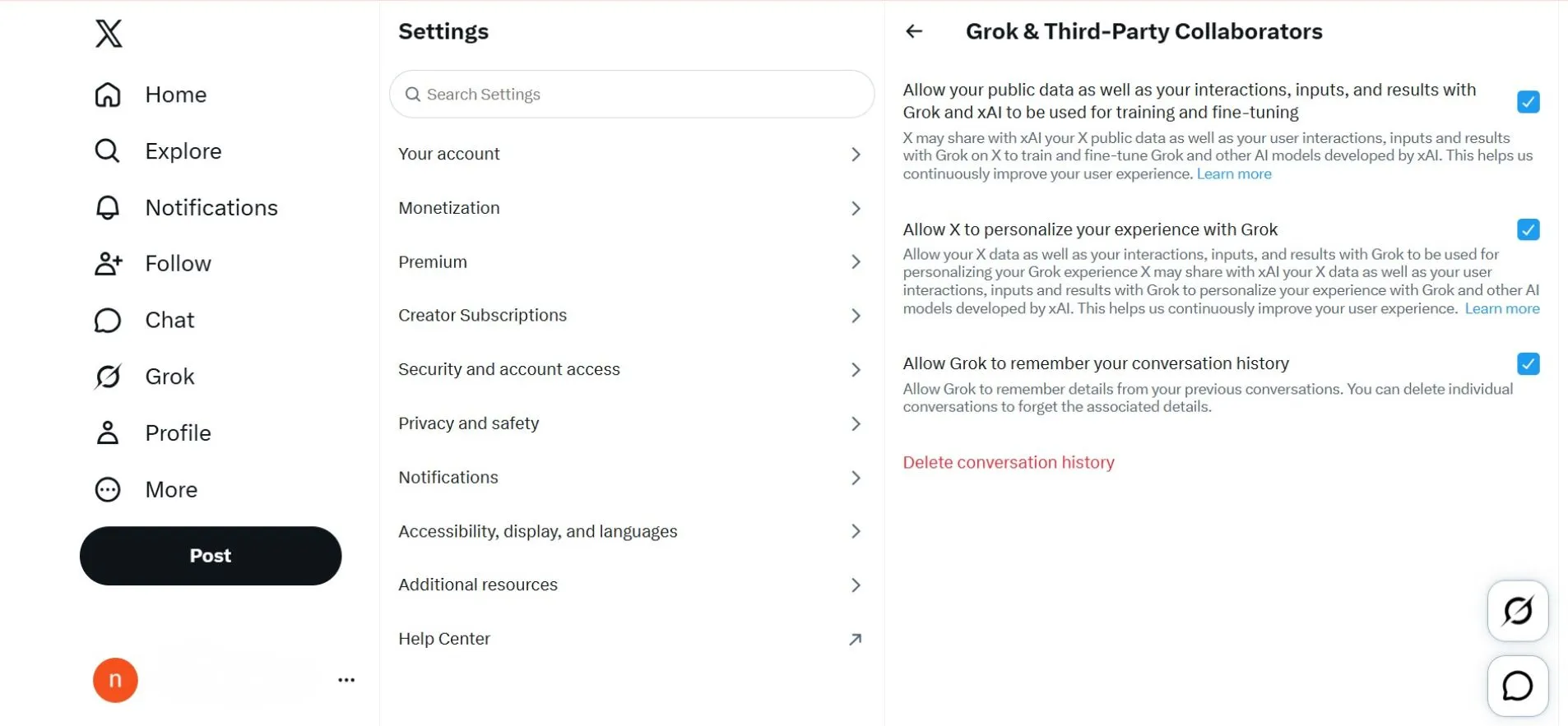
To delete a single chat anywhere: open your Grok history panel, long-press the specific conversation (mobile) or hover and click the trash icon (desktop), then confirm deletion.
How to Stop Grok From Training on Your Data
Deleting your history removes past data from your interface — but it does nothing to stop xAI from processing your future prompts unless you change this setting separately.
Under X’s January 2026 Terms of Service update, your Grok inputs and outputs are now classified as “Content” — treated the same as public posts for model training purposes, by default. You need to opt out on both surfaces.
On the X Platform
- Go to Settings → Privacy and Safety → Grok & Third-Party Collaborators
- Uncheck “Allow your public data, as well as your interactions, inputs, and results with Grok to be used for training.”
- Uncheck “Allow X to personalize your experience with Grok.”
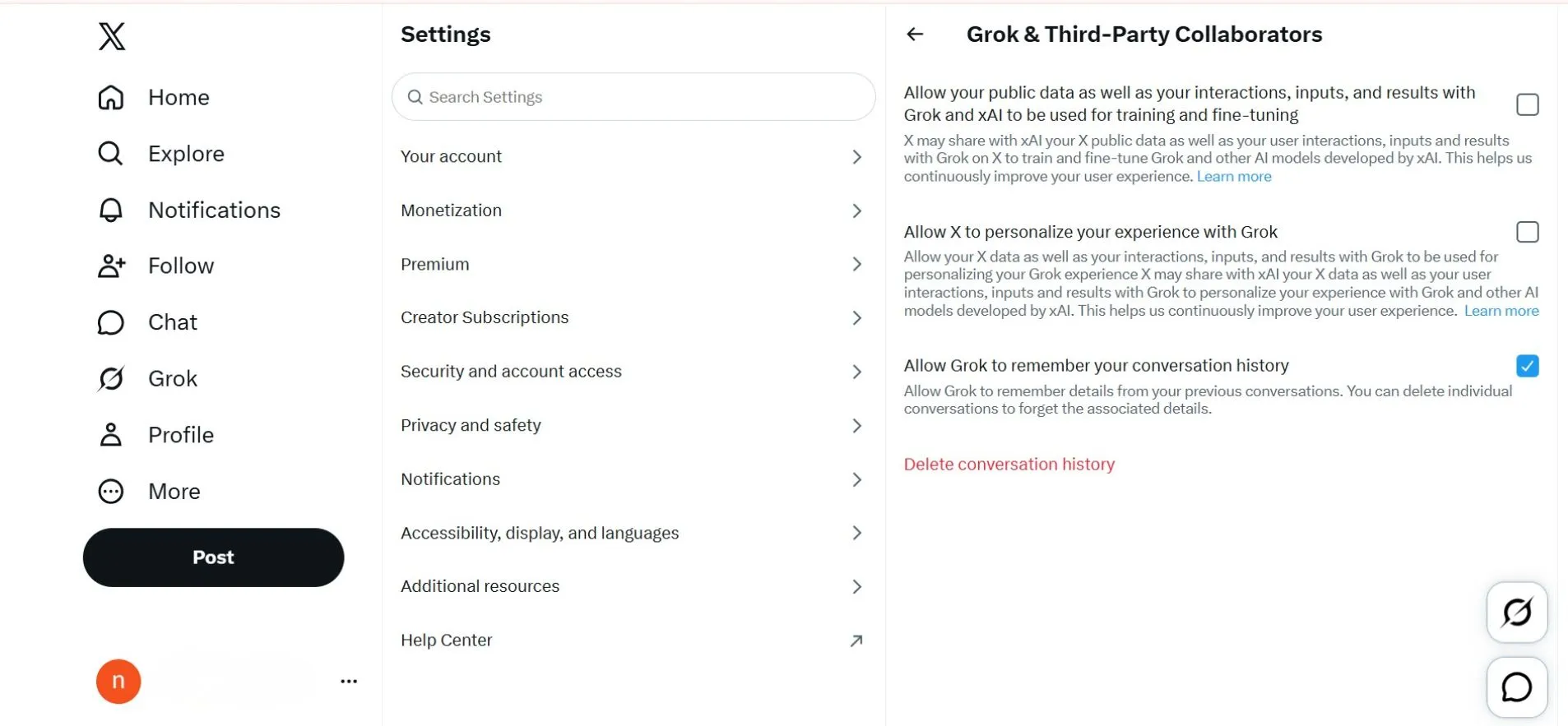
On the Standalone Grok App
- Go to Settings → Data Controls
- Toggle off Improve the Model
One critical limitation: opting out is not retroactive. Conversations processed before you disabled this setting may already be embedded in a training run. There’s no mechanism to remove data from a model that has already been fine-tuned on it — the earlier you opt out, the less exposure you accumulate.
Private Chat Mode: Stop Logs From Forming at All
The cleanest privacy option isn’t deletion after the fact — it’s preventing the session from being logged in the first place. Grok’s Private Chat Mode does exactly that.
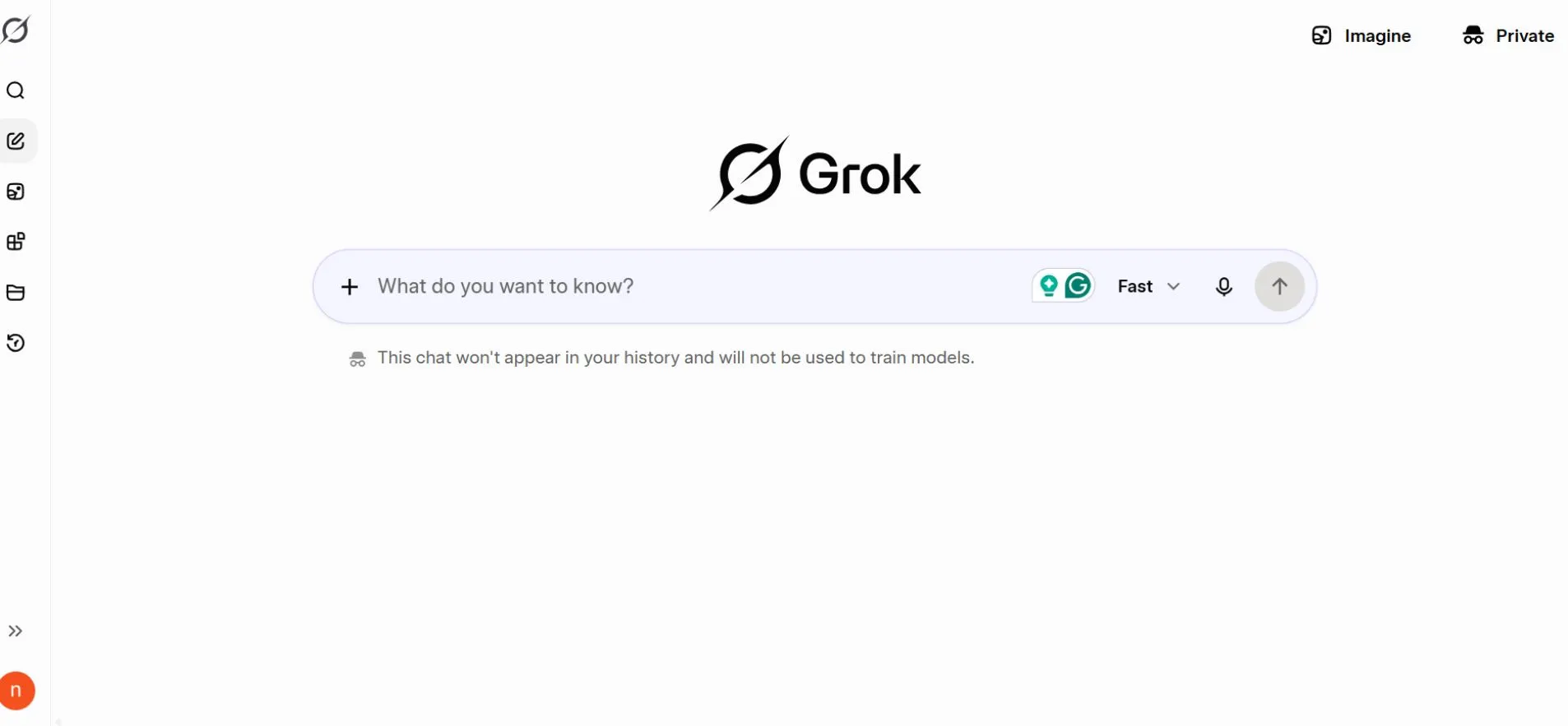
Look for the Ghost Icon in the top-right corner of the Grok chat window. Tapping it starts an ephemeral session that auto-deletes when you close the window and is never eligible for model training. For anything sensitive, this is the better default than clearing history retroactively.
This makes it the go-to setup if you are testing unrestricted prompts but want to keep your data off the grid. If you are exploring these features, you can also check out how to trigger Grok Spicy Mode or see how xAI handles content limits in our piece on Grok AI NSFW restrictions.
What Grok Data Cannot Be Fully Deleted?
Even after a complete Data Controls wipe, some data persists inside xAI’s infrastructure. This is not Grok-specific — every major AI platform operates this way.
| Data Type | User-Deletable | Backend Retention |
|---|---|---|
| Chat conversation text | ✅ Yes (Data Controls) | Up to 30 days post-deletion |
| Grok Imagine media | ✅ Yes (Data Controls) | Up to 30 days post-deletion |
| Safety & moderation logs | ❌ No | Retained per legal/security requirements |
| System telemetry | ❌ No | Retained per platform policy |
| Data used in past training runs | ❌ No | Cannot be retroactively removed from a trained model |
| Shared conversation links | ❌ No | May be cached by search engines after sharing |
The 30-day window is confirmed in xAI’s official documentation, with explicit carve-outs for “security or legal reasons” that may extend retention beyond that window.
Full Privacy Checklist
Run through this after reading this guide:
- Used Data Controls to delete all chat conversations
- Used Data Controls to delete all Grok Imagine media
- Unchecked the AI training opt-in box on X (Privacy → Grok & Third-Party Collaborators)
- Toggled off “Improve the Model” in the standalone Grok app
- Activated Private Chat Mode (Ghost Icon) for future sensitive sessions
- Submitted a formal data deletion request via xAI’s Privacy Portal, if you want documented confirmation
