
TL;DR
- CorelDRAW 2026’s AI features (AI Generate, Remix Image) consume far more RAM than previous versions — and are crashing more sessions as a result.
- When a crash happens, traditional recovery tools fail on the complex, fragmented files AI sessions produce. Recovery rates: ~60–70% traditional vs ~95% AI-powered.
- Not all “AI recovery” tools are equal — see how the leading options compare on CDR-specific recovery.
- Four recovery layers exist before sector-level scanning becomes necessary — most users skip straight to the hard option.
- CorelDRAW autosave is off by default. Enable it under Tools > Options > Workspace > Save before your next session.
- SSD users: your recovery window may be minutes, not hours.
Why AI Features Are Now the Problem
CorelDRAW 2026’s “Artist Intelligence” framework is the most resource-intensive release Corel has shipped.
AI Generate, Remix Image, and AI Masking push RAM and scratch disk usage well beyond previous versions. When those ceilings get hit mid-session — during a complex render or a multi-layer AI operation — the application crashes.
CDR files only write to disk on manual saves or autosave intervals. Everything between those checkpoints lives in RAM. When the crash hits, that work disappears with it.
Corel’s June 2026 v27.1 stability update reduced crash frequency. It didn’t change what happens to unsaved work when a crash does occur.
What AI-Powered Recovery Actually Does
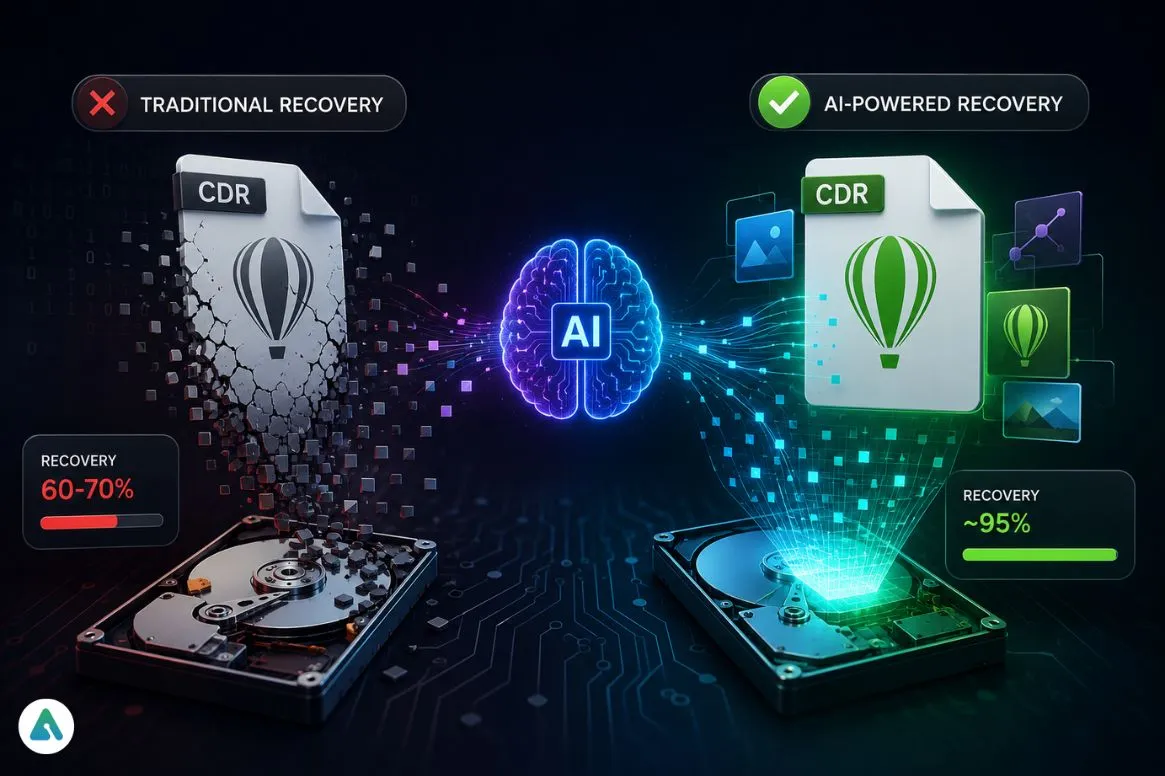
The problem isn’t just that files get lost — it’s that 2026 CDR files are structurally harder to recover than any previous version.
A standard pre-AI CDR file might reach 20–40MB. A 2026 session embedding AI-generated outputs, remixing image layers, and multi-layer vector structures can exceed 200MB — and fragments heavily across storage sectors in the process.
Traditional recovery tools use fixed byte-pattern matching. They scan for known file headers, match against a rule library, and reconstruct what they find. On clean, sequential files, this works. On fragmented, AI-heavy CDR files, it breaks.
The result:
| Recovery Approach | Average Success Rate |
|---|---|
| Traditional rule-based tools | 60–70% |
| AI-powered sector-level tools | ~95% (tested scenarios) |
AI-powered tools differ at two levels:
1. ML pattern recognition. Instead of requiring clean byte-pattern matches, machine learning models trained on millions of recovery cases recognize CDR structural signatures in partial, out-of-order fragments — including AI-generated content layers that traditional tools have never encountered before.
2. Sector-level scanning. AI recovery tools read directly from physical drive sectors, below the OS file allocation table. When CorelDRAW crashes, Windows writes active session data to temp locations the OS stops tracking afterward. AI scanning finds and reconstructs from those locations. Traditional tools never reach them.
Gartner’s Top Trends in Backup and Data Protection for 2026 identifies GenAI adoption as a top emerging capability in enterprise recovery — noting it will contribute to a fundamentally different operational experience for end users. The creative software space is experiencing that shift now, driven partly by the complexity AI creative tools themselves introduced.
How the Tools Compare on AI-Era CDR Files
Not all recovery tools have adopted ML architecture. Most widely used options still run on rule-based or hybrid approaches built for simpler file profiles than those 2026 CDR sessions produce.
| Tool | Architecture | AI-Content CDR Handling | Sector-Level Access | Pre-Scan Validation |
|---|---|---|---|---|
| Recuva | Fixed byte-pattern | Poor on complex CDR | No | None |
| Disk Drill | Signature + partial heuristics | Moderate | Partial | Basic |
| R-Studio | Deep scan + file system parsing | Good | Yes | Moderate |
| 4DDiG Windows Data Recovery | ML pattern analysis + sector scanning | Strong — trained on CDR, including AI content layers | Yes — reads below OS indexing | Yes — pre-validates before surfacing results |
In testing on complex 2026 CDR corruptions, tools using fixed byte-pattern matching consistently missed corrupted path indices and failed to reconstruct layer hierarchies.
ML-based tools — including 4DDiG Windows Data Recovery — successfully reconstructed vector paths and embedded bitmap containers that standard undelete scripts couldn’t reach. The differentiator: the model’s ability to recognize CDR structural signatures in fragments with no clean byte-pattern equivalent.
4DDiG’s free deep scan before any purchase commitment reflects a pre-validation capability older tools couldn’t offer — they lacked the architecture to confirm what they’d found before presenting it.
The Four Recovery Layers
Most users jump straight to third-party tools when the first two layers would have recovered the file in minutes. Work through these in order before reaching for sector-level scanning.
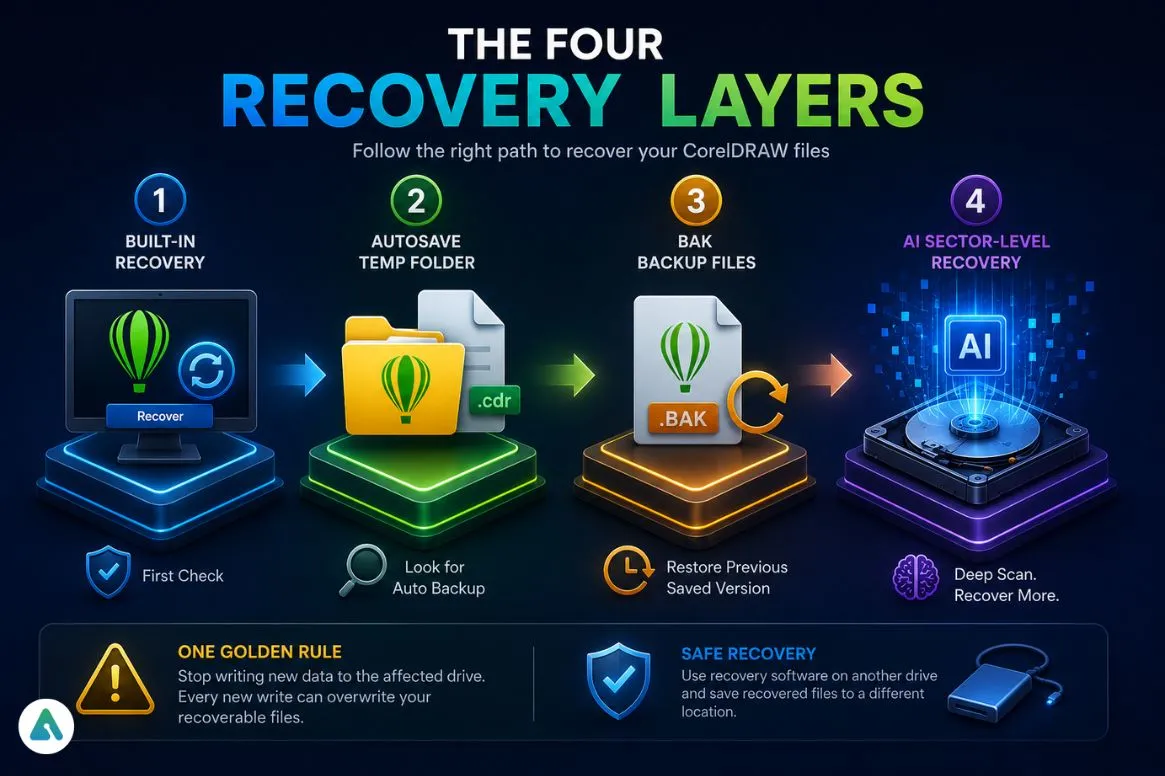
Layer 1 — CorelDRAW’s Built-In Crash Recovery
On relaunch after a crash, CorelDRAW checks for autosave checkpoints and prompts recovery automatically.
Critical: CorelDRAW ships with autosave off by default.
Enable it now: Tools > Options > Workspace > Save — set to a 5-minute interval. For AI-heavy sessions, set it to 3 minutes.
Fails when: autosave was never enabled, or the crash hit before the first interval fired.
Layer 2 — The Autosave Temp Folder
If no recovery prompt appears on relaunch, check:
C:\Users\[YourName]\AppData\Local\Temp\CorelDRAW Graphics Suite\
Look for files named auto_backup_of_[filename].cdr.
These survive crashes but are deleted on clean exits — check here before assuming the work is gone.
Fails when: CorelDRAW exited cleanly before the crash, or the temp folder was already cleared.
Layer 3 — BAK Backup Files
CorelDRAW creates a .BAK file on every manual save, stored in the same project folder as backup_of_[filename].bak.
Rename the extension to .cdr and open directly in CorelDRAW. Recovers the previous saved state even if the original CDR is corrupted.
Fails when: the file was never manually saved, or the BAK lives in the same corrupted location.
Layer 4 — AI Sector-Level Recovery
When the first three layers don’t cover the loss, sector-level AI scanning is the only remaining path.
Tools built to recover unsaved CorelDRAW files operate below the file system layer — reading physical sectors directly and reconstructing files from fragments the OS no longer tracks.
One rule applies across all four layers without exception: stop writing new data to the affected drive immediately. Every new write risks overwriting sectors that hold recoverable data. Install recovery software on a different drive. Always.
The SSD Timing Problem {#the-ssd-timing-problem}
SSD users face a shorter recovery window than they think.
Most modern design workstations run NVMe SSDs with TRIM enabled. TRIM signals the drive controller to proactively clear deleted sectors — sometimes within minutes of a crash, while the machine is still running.
- HDD: Recovery window = hours or longer
- NVMe SSD with TRIM: Recovery window = potentially minutes
If Layer 4 is your path: shut the machine down immediately after checking Layers 1–3.
Run the AI recovery scan from an external boot environment or a separate machine. AI scanning can reconstruct what TRIM hasn’t yet cleared — but not sectors already zeroed.
The Bigger Picture
CorelDRAW isn’t an isolated case.
Across the creative software landscape — Photoshop, Blender, DaVinci Resolve — AI-assisted features are producing sessions that are longer, more memory-intensive, and generate more complex file structures than anything that preceded them.
The recovery industry’s response — ML-based sector scanning, pre-validation against proprietary format specifications, deep temp-sector access — is a direct architectural answer to that complexity. Rule-based tools weren’t designed for it.
The same underlying technology shift that drove the problem is what built the solution. That symmetry is one of the more consequential dynamics in the current AI tooling landscape — and one that creative professionals working in 2026 AI-powered software can no longer afford to ignore.
FAQs
Q. Can AI recovery tools recover a CorelDRAW file that was never saved?
Sometimes. If a crash leaves temporary data in scratch disk or system storage, AI-powered recovery tools may be able to reconstruct parts of the file. Success depends on SSD activity and whether data has been overwritten.
Q. Why are AI-generated CDR files harder to recover?
AI-generated assets make CDR files larger and more fragmented. Traditional recovery tools struggle with fragmented data, while AI-assisted tools can analyze file structure and missing pieces more effectively.
Q. Does CorelDRAW 2026 have autosave enabled by default?
No. CorelDRAW ships with autosave turned off by default. You must enable it manually under Tools → Options → Workspace → Save.
Q. Can I recover a CorelDRAW file after an AI Generate crash?
Often, yes. First check CorelDRAW recovery files, autosave folders, and BAK backups. If those fail, recovery software may still recover lost project data.
Q. Is it safe to run a recovery scan?
Yes. A read-only recovery scan does not modify the affected drive. Always save recovered files to a different location.
Q. Why do SSDs make recovery harder?
Most SSDs use TRIM, which can permanently clear deleted data within a short time. The sooner recovery starts, the better the chance of success.
Related: Best AI-Powered Access Control Systems for Enterprises in 2026
